 Readprint
Photograph a row, not an entire room
Stand roughly in front of the shelf and keep the titles large enough to read. If you cannot read them when you inspect the photo on your phone, take a closer shot. A clear row of books is more useful than a distant view of the whole bookcase.
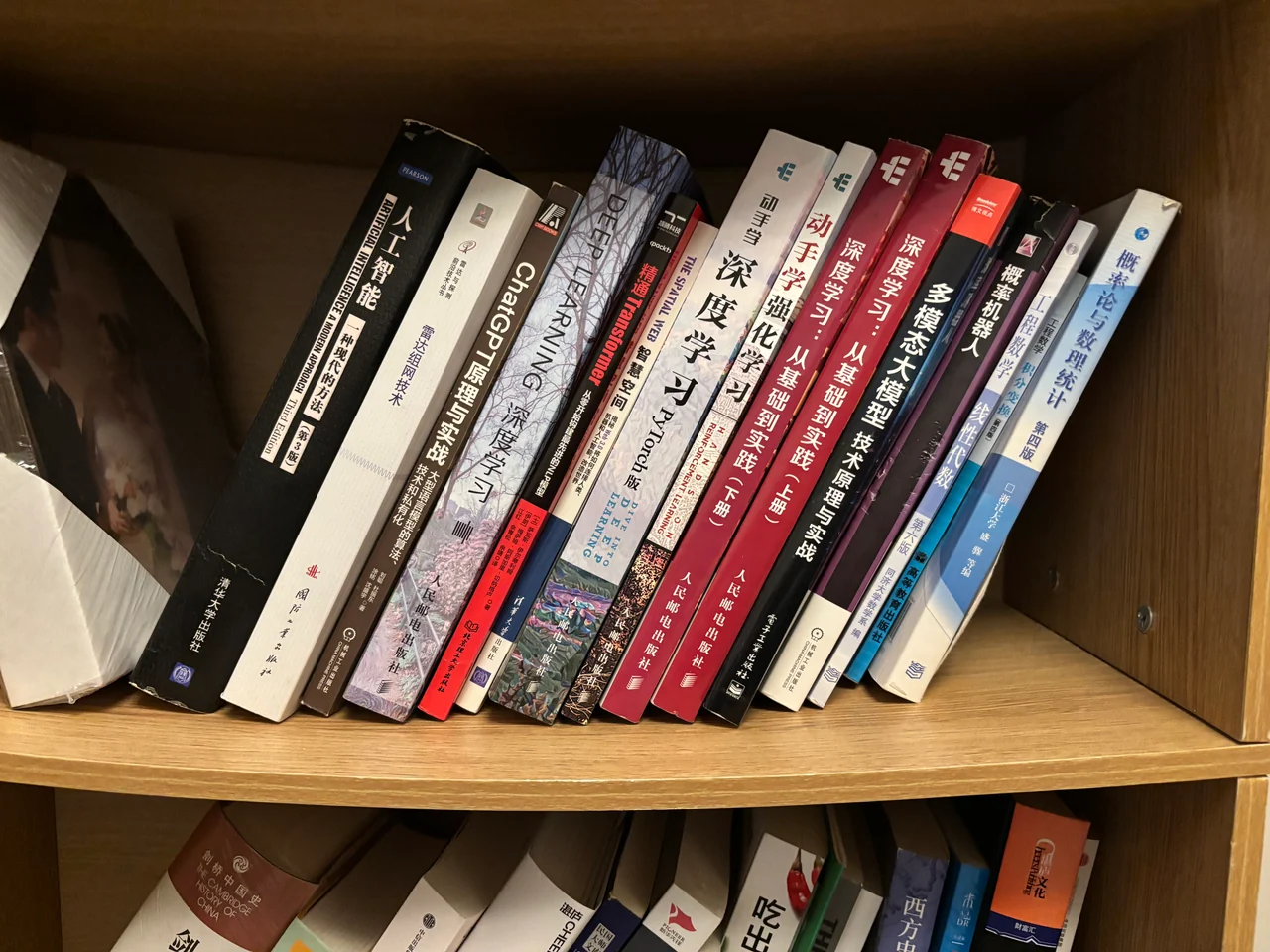
A quick photo checklist
- Readable titles: include the full spine; avoid cutting off the first or last word.
- Even light: move away from reflections and strong shadows. Check glossy jackets for glare.
- Unblocked books: move objects that cover titles and separate tight stacks where practical.
- A steady camera: check for blur before choosing the image.
- Useful coverage: use your remaining images for other rows rather than repeating the same few books.
Recognition merges repeated titles, but clear, varied coverage still helps. Do not pack so many shelves into one image that their text becomes tiny.
Can I use Kindle library screenshots?
Yes. A screenshot of your Kindle or another e-reader library can be used when book titles and authors are readable. This is an image-input workflow: Readprint does not sign in to Amazon, synchronize your Kindle library, or import highlights and reading-progress records.
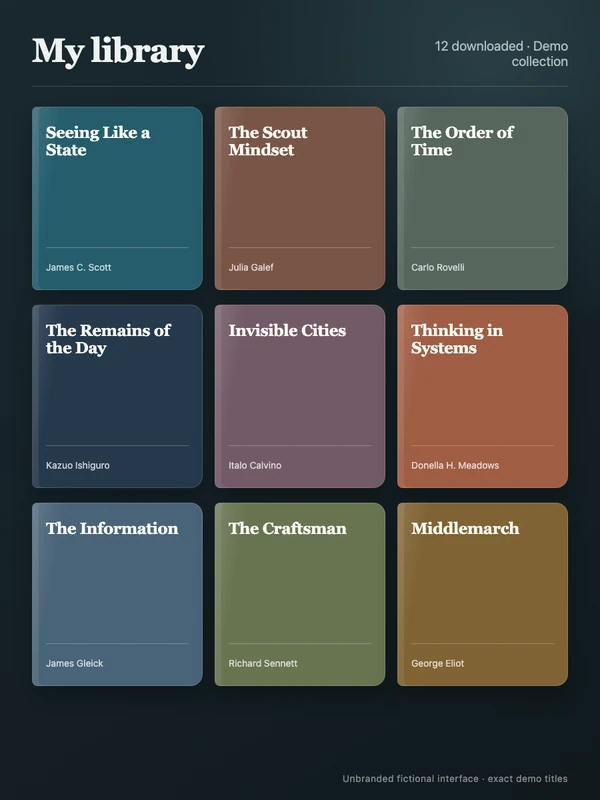
Use a view with readable titles rather than tiny cover thumbnails. Choose different library sections across screenshots, and crop out unrelated account details or notifications before uploading. The final list should contain books you have read, not everything stored in your library.
Confirm the books before the portrait
Book recognition is free. Review the titles and authors, fix incorrect details, and deselect books you have not read or that belong to someone else. A recognition error can change the interpretation, so this step matters more than making the photos look beautiful.
If a title is missed or unreadable, try a clearer image. A book with no legible title should not be treated as reliably recognized. More confirmed books can provide more context, but quantity alone does not guarantee an accurate portrait.
What happens to the images?
Readprint asks for permission before sending images for AI processing. Images are used to recognize the books; the confirmed list is then used for the portrait. The cover is generated from a derived brief, not from your original shelf photos.
Readprint does not publish your shelf automatically. Read the current privacy policy for the processing providers and retention details before uploading.
See what comes next
After confirming your books, you can choose to buy a full reading portrait. It usually takes 2–4 minutes; keep the app open while it is working.
Explore the complete illustrative portrait, or learn what a reading portrait can—and cannot—tell you.